

Generate a practical with AI
Prepare a science investigation using common school equipment or your current lab inventory. Review its method, equipment and suggested rubric before saving a private assignment draft.
1. Describe the practical
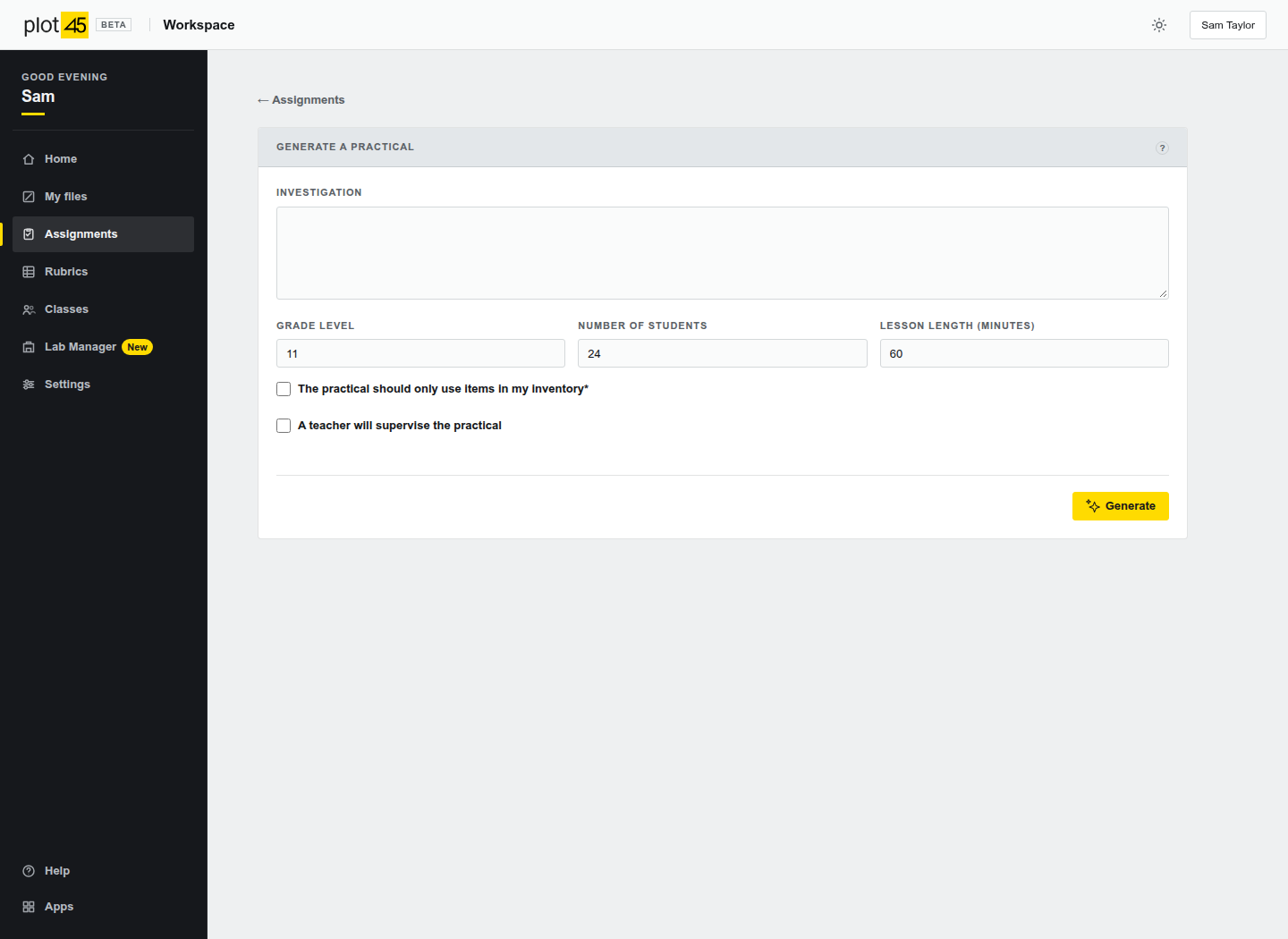
Open Assignments and choose Generate a practical. Describe the relationship students will investigate. Set their grade level, the number of students and the lesson length. Confirm that a teacher will supervise.
When you continue, a confirmation explains what will be sent to OpenAI. This includes your investigation and class settings. If you select the inventory option, it also includes relevant stock from your current lab. Without that option, the AI uses common school equipment and receives no inventory. It does not include student records, files or marks. Do not include personal student information in your request.
The feature supports low-risk, supervised school-science investigations. It declines unrelated requests and potentially hazardous procedures. Its launch restrictions exclude flames, mains electricity, hazardous chemicals, biological cultures and human or animal experimentation. Some legitimate practicals will therefore need to be prepared manually.
2. Review the proposal
The proposal includes an aim, hypothesis, variables, method, precautions, analysis and a suggested points rubric. Read the complete proposal. Check the scientific method and your own local risk assessment before using it with students. Automated checks do not certify that an experiment is safe.
The class plan shows the groups, settings tested, repeat readings at each setting and total trials per group. The equipment table shows calculated total quantities for the class and their inventory source. Check that the quantities match every condition and repeat in the method. Archived items, zero stock and stock marked poor, broken or needing repair are excluded. Unmarked condition still needs your inspection. Units remain exactly as recorded. The AI cannot assume that 20 g and 5 kg are interchangeable.
Each equipment entry identifies its source. From inventory means it was matched to a listed stock record. Not from inventory identifies an unlisted suggestion. Inventory not checked appears when you chose common equipment without consulting stock. These labels remain in newly saved draft instructions.
Listed stock is not a check of availability at a particular time. The proposal reserves nothing. With the inventory option selected, Plot45 searches the full catalogue and gives the AI a relevant selection. The AI may suggest unlisted substitutes, which are marked for your review. Without that option, every equipment quantity needs your availability check. Check suitability, quantities and any substitutions before using the practical.
If you used the inventory option and the inventory changes before saving, start a new proposal. Common-equipment proposals are unaffected by inventory edits. An unfinished proposal appears under Recent proposals. Resume its remaining checks or discard it. A failed stage requires an explicit retry and does not publish anything.
3. Edit and assign
Choose Review and save draft after your review. Confirming creates a private assignment draft with its own rubric. No students are assigned. The normal assignment editor opens so you can change instructions, title, pieces, dates and students.
Edit the suggested rubric in Rubrics. Add any room and equipment requests through the normal assignment controls. School approval still follows the Lab Manager workflow. When the work is ready, use the existing Assign action.
4. Access, limits and data
A current paid teacher uses the current shared school lab or their active private inventory. A school whose plan has expired cannot use its shared lab through a separate Teacher plan. Private archives are excluded.
Practical drafting and inventory import share protective monthly AI limits. The current teacher ceiling is US$3 and the site ceiling is US$5. These are conservative API cost reservations, not a bill to you or a promise of unlimited requests. Failed or uncertain calls still count towards the limit.
Temporary prompts and proposals expire after seven days. You can discard a proposal sooner. Saved drafts follow normal assignment rules. OpenAI handles API content under its API data controls. Manual assignment creation remains available.
Continue with the Workspace guide or Lab Manager guide.