

Import lab inventory
Use an existing stock document or a completed Plot45 template. Review the proposed items and their source before adding anything to your lab.
Import from a template
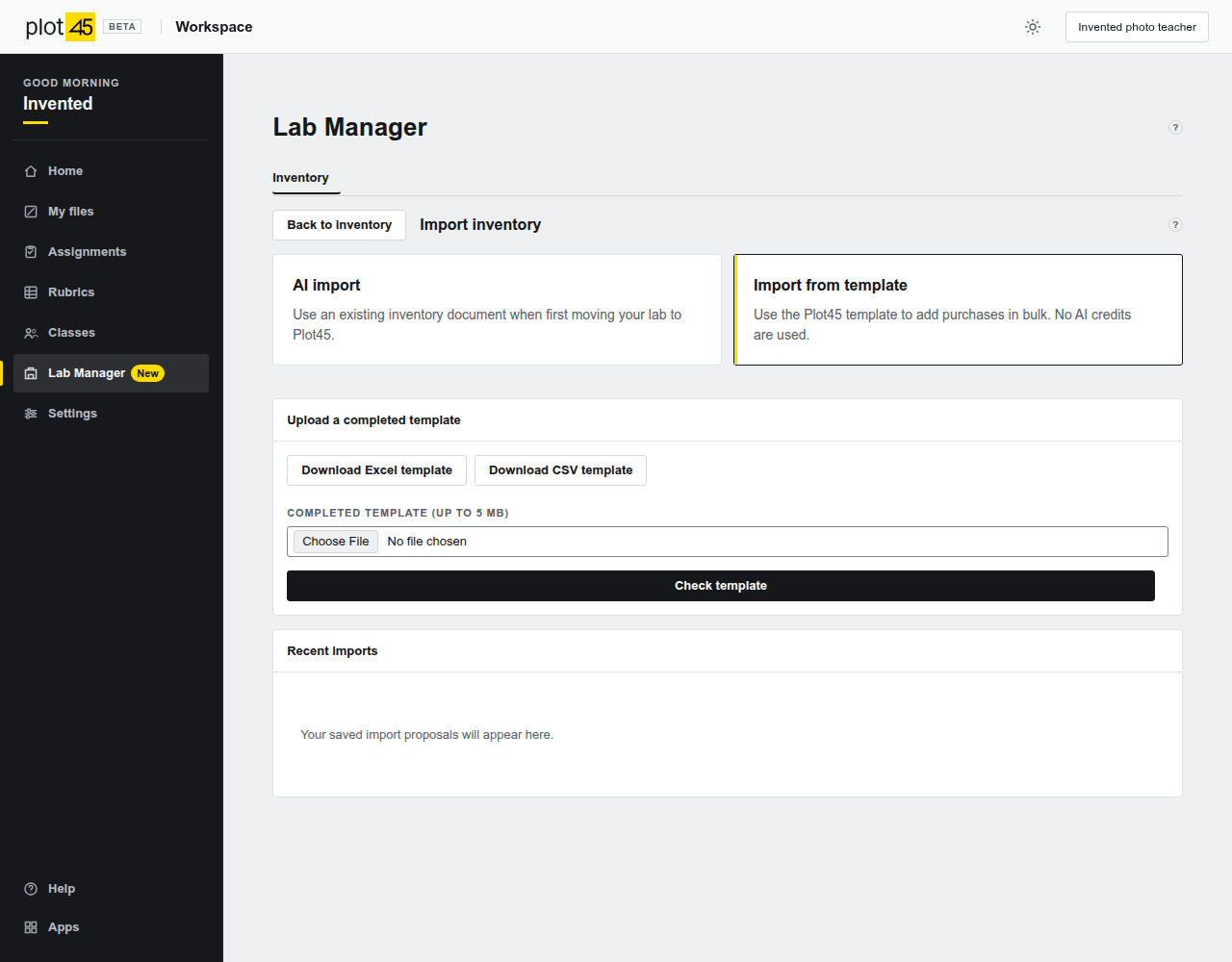
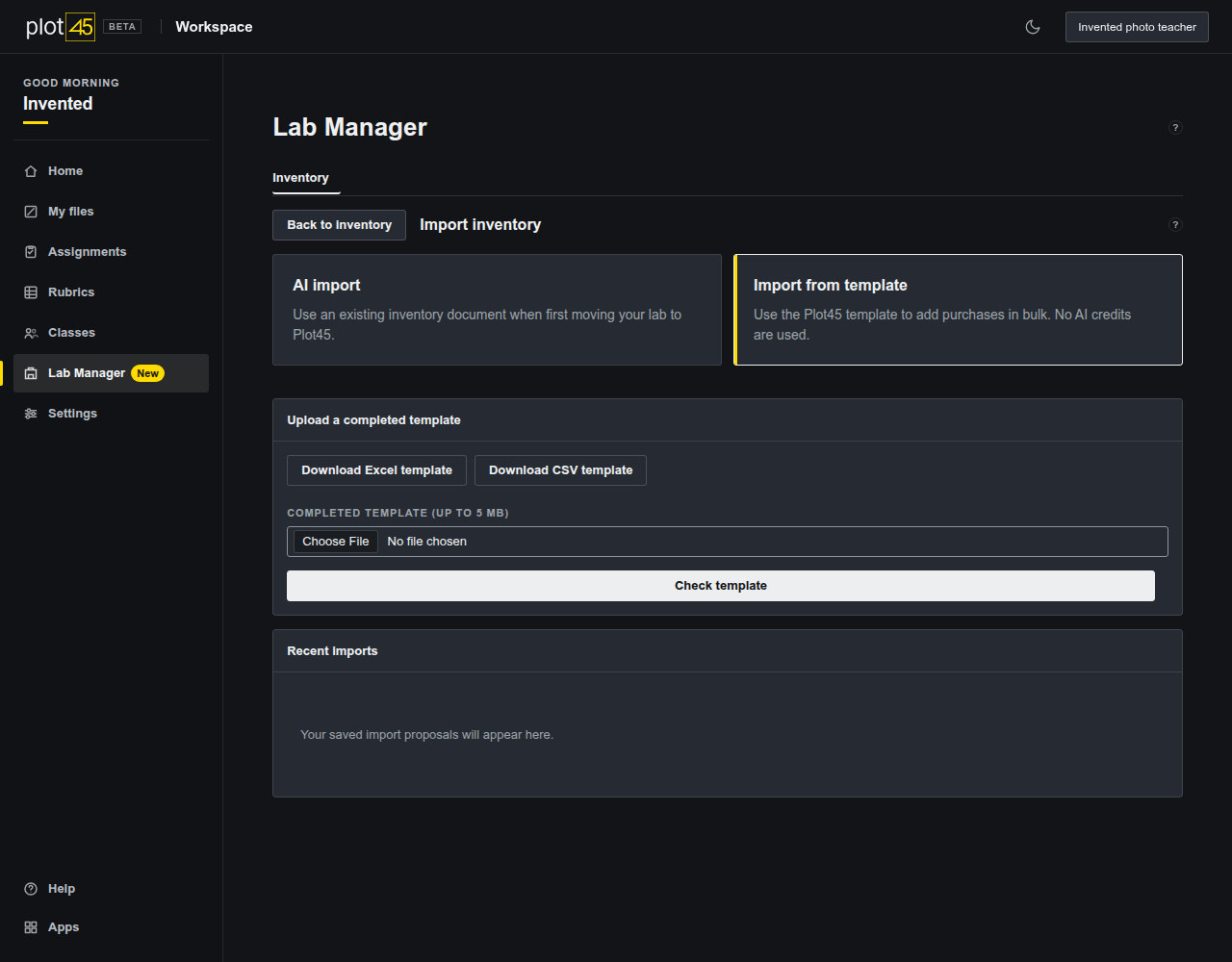
Open Import inventory in Lab Manager, then choose Import from template to add purchases in bulk. This route reads the named columns directly. It does not send the file to OpenAI or use your AI import allowance.
- Download the Excel template or CSV template.
- Add stock to the Inventory sheet. Keep the headings in row 1. The Excel Instructions sheet contains examples and is ignored during import.
- Enter an item name and an exact quantity. Capacity, units, rooms, tags, codes and notes are optional. Separate tags with commas.
- Use the same Item reference for storage rows belonging to one item. Its name, capacity and manual link must agree. Blank common fields inherit a supplied value in that group. Leave the reference blank for separate items.
- Use YYYY-MM-DD for purchase dates and an HTTPS address for a manual link. Item codes are added to notes. Photos are added separately after saving.
- Select your completed file and choose Check template. Review its catalogue and source, then confirm the selected items as described below.
A template can contain up to 1,000 inventory rows and be up to 5 MB. Unknown column layouts and other populated worksheets are refused. Use AI import for an existing document with a different layout. Formulas are not calculated. Their saved results and hidden rows need review. Missing or approximate quantities stay unselected.
1. Prepare your file
Choose a copy containing the inventory information you want to process. Plot45 sends the document content to OpenAI when you agree to start. Keep the original so you can compare quantities, variants and storage locations.
| Source | What is read |
|---|---|
| CSV or TSV | All records, including quoted fields. Use UTF-8 text or a UTF-16 file with its encoding marker. |
| Excel XLSX | All worksheets, including hidden rows and columns. Sheet names and merged-cell references are preserved. |
| Word DOCX | Paragraphs, table rows and supported header, footer and note parts. |
| Each page, including scanned pages. |
Convert older XLS or DOC files before uploading. Password-protected or damaged documents cannot be read. Embedded pictures in Excel and Word need manual review; they are listed in Source review and are not interpreted by AI.
File notes can explain how your inventory is organised. For example, you can say that L2-204 S3 means room 204, storage area S3, and that L2 is a floor marker. Notes apply to every AI batch. They cannot supply a missing quantity or remove a warning. Use up to 2,000 characters. To use different notes after reading has begun, start a new import.
2. Upload and read
- Open Lab Manager in your Workspace and choose Inventory.
- Choose AI import and select your file.
- Optionally fill in Notes about this file to explain column names, room codes or abbreviations.
- Choose Read inventory. Read the confirmation about sending its contents and your file notes to OpenAI.
- Choose Agree and read inventory to upload and start processing. Cancel leaves your inventory unchanged.
The first stage reads the complete source and divides it into batches. Processing creates a proposal. It does not add stock to your catalogue.
3. Continue a long import
The progress view shows four stages: Upload, Read, Review and Import. During reading, the bar measures source rows accounted for and the batch count shows recorded progress. Uploading and checking the source have no percentage estimate. The document animation shows active work and respects your device’s reduced-motion setting. Proposed items appear as processing continues. A failed or incomplete batch remains unfinished and cannot silently count as a complete import.
Choose Pause to stop after the current batch. You can return to Inventory or leave the page. Reopen Import inventory, choose the proposal under Recent imports, then choose Continue reading. Saved progress is reused.
Batch progress shows individual failures. Retry after checking the source. If you choose Exclude batch, its rows stay marked unresolved in Source review. Those rows need to be checked and handled separately.
4. Review proposed items
The Catalogue shows the items AI found. Valid items without warnings are selected initially. Missing quantities, approximate counts and possible duplicates need review before selection.


- Choose Edit beside an item.
- Check its name, capacity, notes, tags and storage rows against the original document.
- Enter an exact Quantity for every storage row. Leave Units blank for a simple count, or enter the units used in your source.
- Read any warnings. Open Source rows to inspect the recorded text and quantity quotes.
- Confirm reviewed warnings and choose whether to select the item. Choose Save changes.
Capacity describes the item or package. Ten 250 mL beakers have capacity 250 mL and quantity 10, with Units blank. Two 500 g bottles are two bottles; their package size does not prove that 1,000 g remains.
Keep quantities such as 20 g and 5 kg in separate storage rows. Plot45 does not convert them automatically. A source count such as 100+ needs an exact count before import. Lost and broken records need reconciliation with current stock.
Search to narrow the proposal. Select all matching and Clear matching selection apply across all pages of that search. Resolve items in Needs review only individually.
Matching names and capacities are flagged as possible duplicates. The importer does not merge them automatically. Leave an existing item unselected if you intend to update its current stock instead. Confirm a separate matching item only when that is what you want.
To correct a repeated location, choose Map locations. Select a current location and enter its corrected Storage room and Storage area. Choose Preview changes to see the affected count and the first 50 matching rows. Choose Apply to proposal to update all matching unsaved rows, including other pages. Quantities, selections and review warnings stay unchanged. Already imported items and live stock are not changed. Mapping a storage label does not create a bookable room.
5. Check the source
Open Source review to see each recorded row or page and its outcome. Headers, notes and unresolved entries remain visible. Embedded Office pictures are listed for manual review. Use the original or Download source to inspect them before confirmation.
Compare the result with every relevant sheet or page. Source coverage shows what was processed; it cannot prove that AI understood every entry correctly. Correct the proposal and handle missing or excluded records separately.
6. Import selected items
- Finish processing or explicitly account for excluded batches.
- Review your selection, then choose Import selected items.
- Read the confirmation and confirm that you checked the selected items and unresolved or excluded source data.
- Choose Import selected items again to save.
Selected items are saved in small groups. If the page or connection is interrupted, reopen the same proposal and choose Continue import. Items already saved by that proposal are not added again.
A newly discovered duplicate returns the remaining proposal to review. Already saved items remain in your catalogue. Discarding a proposal also leaves previously imported items intact.
7. Access, limits and data
Import is available where your current Teacher or School access lets you edit the active lab. A proposal belongs to its creator and original lab. A school membership or plan change can prevent its use. Current access is checked again before saving.
| Limit | Maximum |
|---|---|
| School AI imports, shared by all its teachers | 4 in the last 12 months |
| Individual Teacher AI imports | 2 in the last 12 months |
| Template file | 5 MB and 1,000 inventory rows; no AI allowance used |
| Uploaded file | 40 MB |
| Nonempty spreadsheet rows or Word blocks | 2,000 |
| Worksheets | 100 |
| PDF pages | 50 |
| Open unfinished proposals | 3 |
Your import allowance appears above the upload and review screens. One import is used when the first AI reading request starts. Uploading a file or a failed source check uses no import. Continuing or retrying the same proposal uses no extra import. Discarding a proposal after reading starts does not return its allowance. Each used import becomes available again after 12 months. Reviewing, correcting locations and saving an existing proposal do not use another import.
Complete a proposal within seven days. Very dense pages or long text fields may require smaller source sections. AI usage limits can stop further processing. Unfinished batches remain visible and are not marked complete.
OpenAI receives the source content used for extraction. Plot45 does not add your account password or sign-in tokens to the request. Its handling of API data is explained in OpenAI's data controls. Read the Plot45 privacy policy before choosing whether to use this feature.
For manual entry and the rest of the lab tools, return to the Lab Manager guide.